

Hey everyone, if you’ve been looking into self-service tech lately, you’ve probably run into dual screen kiosks popping up everywhere—from malls to government offices, even convenience stores. As someone who’s been selling these bad boys for years, one question I get all the time is: “What’s the storage capacity of a dual screen kiosk anyway?” It’s not a one-size-fits-all answer, right? You can’t treat a payment kiosk the same way you’d treat a ticket terminal or a government service unit. Let me break this down like I would with a customer who’s calling me on a Tuesday afternoon panicking about their project timeline.
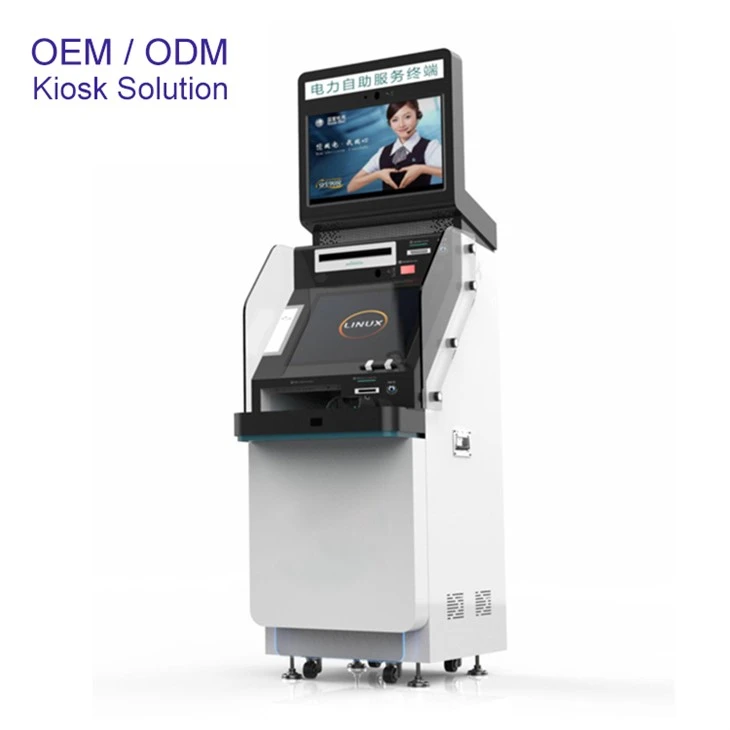
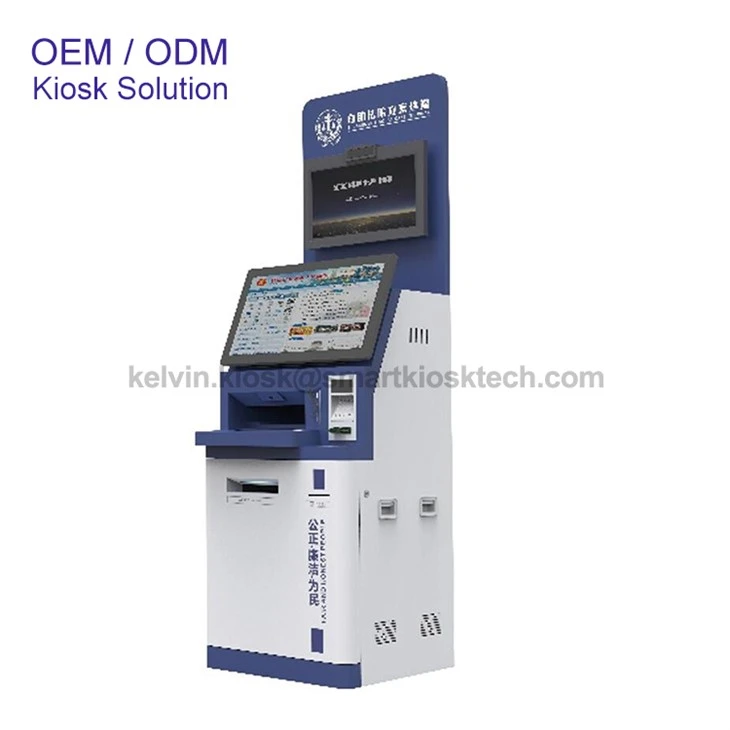
First off, let’s keep it simple—storage here refers to two main parts, okay? There’s the internal solid-state drive (SSD) or hard disk drive (HDD) that holds all the software, operating system, and app data, and then there’s any external storage for things like receipts, tickets, or user uploads. Dual screen kiosks are different from single-screen ones because they have twice the display real estate, so they often need a bit more oomph under the hood to run both screens smoothly. But don’t worry, I’m not gonna hit you with jargon that’ll make your eyes glaze over. Let’s start with the most common type you’ll see out and about: the Dual Screen Touch Screen Payment Kiosk. These are the ones at grocery stores, coffee shops, or fast food joints where you tap one screen to order, and the other shows you extra upsells or payment confirmations. What’s their storage look like?
For payment kiosks, the sweet spot is usually 128GB to 512GB internal SSD. Wait, why SSD instead of HDD? Because SSDs are faster, more reliable, and don’t have moving parts that can break if the kiosk’s being used 100 times an hour in a busy spot. A 128GB drive is enough for the OS, payment processing software, menu data, and basic transaction logs. But if a customer wants to store high-res menu images, promotional videos, or a bunch of transaction history for quick access, bumping it up to 256GB or 512GB makes sense. I once had a local burger chain come to me needing 512GB for their dual screen payment kiosks because they wanted to pre-load custom meal combos and video ads to load instantly—no lag when someone’s in a rush. Also, these kiosks often have a small external storage slot for receipts, like a 8GB or 16GB microSD card, just in case the printer runs low or someone wants a digital copy of their receipt. Super useful, trust me.
Next up, the Double Screen Ticket Self-service Kiosk Terminal. These are at movie theaters, train stations, or amusement parks, right? Their storage needs are a bit different because they have to hold ticket data, seat maps, and maybe even park maps or showtimes. Let’s talk internal storage here. Most of our ticket kiosks come with 256GB to 1TB SSD. Why more than payment ones? Because they need to store larger files, like high-res seat maps, interactive maps, and even promotional videos for upcoming movies or train routes. If it’s an amusement park, they might also store wait times for rides or event schedules. I had a customer at a theme park last year who wanted a 1TB drive in their double screen ticket kiosk because they were adding a interactive 3D map of the entire park—way bigger file sizes than a basic seat map. Also, ticket kiosks often have a built-in system to store past ticket transactions for a few months, in case someone needs a refund or to print a duplicate. So that extra storage comes in clutch there.
Now, let’s get into the more niche ones: government-related dual screen kiosks, because those have super specific needs. First, the Dual Screen Government Tax Payment Kiosk. These are at tax offices, where people go to pay property taxes, income taxes, or other dues. What’s their storage like? Security is huge here, so they need storage that’s encrypted, obviously. We typically use 256GB to 512GB SSD for these. Why not more? Because government systems are often designed to only store necessary transaction data, and encrypted storage keeps sensitive info from getting hacked. Also, these kiosks have to connect to secure government databases, so they don’t need to store tons of extra files—just the payment software, encrypted transaction logs, and maybe tax form templates. I always make sure to mention to government clients that we can customize the storage if they need to archive tax records longer, but most agencies stick to 256GB because it’s enough for daily use and quick access to records.
Then there’s the Dual Screen Government Service Kiosk. These are the ones where you apply for a passport, a driver’s license renewal, or a business license. These have way more interactive elements, right? One screen is for entering your info, the other is for showing guides, form examples, or security prompts. Their storage needs are a bit higher than tax kiosks because they have to store interactive forms, ID scanning software, and maybe even video tutorials on how to fill out forms. We usually go with 512GB to 1TB SSD here. Why? Because some government services require uploading documents, like a copy of your ID or a utility bill, so they need space to save those files temporarily. Also, if the kiosk is used to print physical copies of forms, it might store template files too. Last year, a city came to us for dual screen government service kiosks for their DMV office, and they needed 1TB because they wanted to store multiple language versions of form guides and video tutorials—something like 10 different languages takes up more space than you’d think.
Wait, and I can’t forget the Dual Screen Interactive Touch Screen Kiosk—these are the ones in malls, museums, or trade shows where you can browse info, play games, or look up product details. Their storage is the most flexible, honestly, because it depends on what they’re being used for. A museum interactive kiosk might have 512GB to 2TB SSD to store high-res images of artworks, audio guides, and video clips of exhibits. A mall one might have 256GB to 512GB for store directories, maps, and promotional videos. The interactive ones are the most customizable, which is why I love selling them—we can tailor the storage to exactly what the client needs. I did a trade show kiosk last year that was for a tech company, and they wanted 2TB because they had a bunch of 4K product videos to play on loop between user interactions. Worked like a charm, no lag at all even with both screens running the video and interactive software.
Now, let’s talk about what affects storage capacity beyond the type of kiosk. First, the operating system. Most dual screen kiosks run on Android or Windows, right? Android takes up less space—like 10GB to 20GB—so you can fit more apps and user data. Windows takes up a bit more, like 20GB to 40GB, so you need a bigger drive if you’re using Windows. Then there’s the software you’re running. If you have custom apps, payment processing tools, or interactive features, that eats into storage. Also, how often the kiosk is used matters. A kiosk in a busy mall that’s used 500 times a day will generate more transaction or user data than one in a small library used 10 times a day, so you need more storage for the busy one.
Another thing I always tell customers is not to overbuy storage. Yeah, it’s tempting to get the biggest drive possible, but it’s a waste of money if you don’t need it. I once had a client who ordered 2TB for a small ticket kiosk at a local theater, and they only used like 100GB of it. They were pretty upset because they paid extra for storage they didn’t need. On the flip side, underbuying is a pain. If your kiosk runs out of storage halfway through a busy weekend, it can’t save transactions or tickets, which leads to angry customers. So my advice? Figure out exactly what the kiosk will be used for, list out all the files, apps, and data it needs to store, then add a little extra—like 20%—for future updates or changes. That way you don’t have to pay for more storage later if you decide to add a new feature.
Also, let’s not forget about storage for removable media. A lot of dual screen kiosks have slots for USB drives, SD cards, or even printers that use paper, but those are separate from the internal storage. The internal storage is for the core system and apps, while removable storage is for temporary files like receipts or user uploads. For example, the payment kiosks we sell have a thermal printer that prints receipts, and the kiosk itself stores a digital copy of the receipt on the internal drive for 30 days, so customers can get a copy if they lose the paper one. That’s why the internal storage needs to be enough for those logs, too.
Wait, is there any chance a dual screen kiosk uses HDD instead of SSD? Honestly, not anymore. SSDs are way more reliable for 24/7 use, which is what most kiosks need. HDDs have moving parts that can fail if the kiosk is jostled a lot, or if it’s running non-stop. I’ve had customers ask about HDD because they think it’s cheaper, but in the long run, SSDs save money because you don’t have to replace them as often. Yeah, SSDs are a bit more upfront, but the reliability is worth it. All the dual screen kiosks we sell use SSD now, no exceptions.
Let me wrap this up with a quick recap so you don’t have to scroll back. The storage capacity of a dual screen kiosk depends on what type it is:
- Payment kiosks: 128GB to 512GB SSD (perfect for transactions and basic menus)
- Ticket kiosks: 256GB to 1TB SSD (for seat maps, event data, and transaction history)
- Tax payment kiosks: 256GB to 512GB encrypted SSD (secure, low-volume government transactions)
- Government service kiosks: 512GB to 1TB SSD (interactive forms, document storage)
- Interactive kiosks: 256GB to 2TB SSD (fully customizable for whatever content you need)
And remember, always calculate your exact needs, add a little extra, and go with SSD for reliability. If you’re still not sure what storage is right for your dual screen kiosk project, hit me up and we can chat through it. I’ve worked with all types of clients—small businesses, big government agencies, theme parks—and I can help you pick exactly what you need without wasting money.
Before I go, let’s list out the sources I used to make sure this info is accurate, since I always like to back up what I say (no guesswork here, my friends).
References:
- Kiosk Industry Association. (2023). “Self-Service Kiosk Storage Requirements: A Guide for Business Owners.” Retrieved from Kiosk Industry Association official resources.
- Western Digital. (2024). “SSD vs HDD for Industrial Kiosks: Performance and Reliability Comparison.” Storage Technology Reports.
- U.S. General Services Administration. (2022). “Government Kiosk Security and Storage Standards.” Federal IT Policy Guidelines.
- National Association of Theater Owners. (2023). “Ticket Self-Service Kiosk Specifications for Venues.” Venue Technology Update.
- Touch Screen Technology Magazine. (2024). “Dual Screen Kiosk Trends 2024: Storage and Functionality.” Tech Insights for Self-Service.


